Customize how it looks!
Backgrounds, your own images, accent colors, glass styles and even snowfall - everything you need to know about the new Customization tab.
Ether Ultimate Optimizer is something you open regularly, so it should feel like yours. That's why we've added a brand new Customization tab in Settings. It lets you change how the app looks - and only how it looks. Nothing in this tab touches Windows or your system configuration.
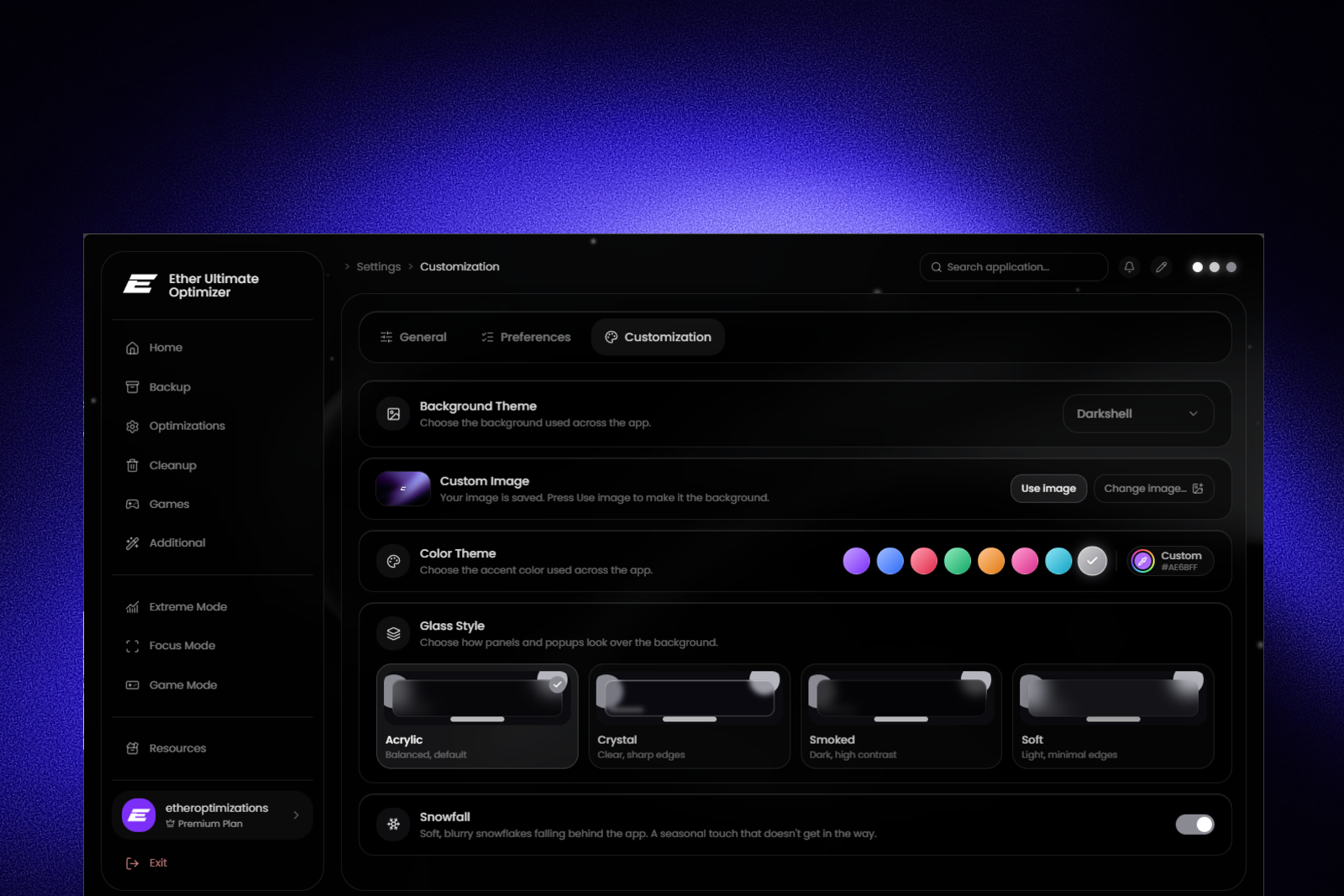
Background Theme
Pick the background used across the whole app. You can choose from static images like Moon (the default), Darkshell, Shockwave and Maze, or go for one of the animated, softly blurred backgrounds: Abysal, Sapphire and Rift.
There's also a Windows wallpaper option. It uses your current desktop wallpaper as the app background and automatically follows it whenever you change it.
Use your own image
Want something completely personal? Click Choose image… and pick any picture from your PC. PNG, JPG and WEBP files are supported, up to 100 MB. The image is copied into the app folder and becomes your background right away, so you can safely move or delete the original.
While your custom image is active, you can fine-tune it with Brightness and Saturation sliders - perfect for dimming a bright photo so the interface stays easy to read. One click on Reset brings both back to default.
Color Theme
Change the accent color used across the app. Choose from eight ready-made themes: Ether (our signature purple), Ocean, Crimson, Emerald, Amber, Rose, Cyan and Mono.
If none of them fit, use the Custom option to pick any color you like. The app previews it live while you drag through the color picker, so you can see the result before you settle on it.
Glass Style
Decide how panels and popups look on top of your background. There are four styles to choose from, each with its own preview card:
Acrylic - balanced, the default look. Crystal - clear with sharp edges. Smoked - dark with high contrast. Soft - light with minimal edges.
Snowfall
And just in time for winter - flip the Snowfall toggle to get soft, blurry snowflakes gently falling behind the app. We built it so we can add more seasonal effects in the future, so stay tuned.
Final notes
All of your choices are saved automatically and load instantly every time you start the app. Head to Settings → Customization and make Ether Ultimate Optimizer truly your own.
As always, feedback is crucial. If you have ideas for new backgrounds, color themes or seasonal effects - just let us know.